
Writing Champion and Economic Buyer to Opportunity Contact Roles
Overview
Spotlight.ai automatically discovers contacts from the meetings and emails it analyzes and syncs them to Salesforce in two ways:
- Contact creation: Newly discovered contacts are created in Salesforce.
- Opportunity Contact Roles (OCR): Discovered contacts are added to the relevant Salesforce opportunity as Opportunity Contact Roles.
This applies to all contacts Spotlight.ai finds - but it is most significant for contacts designated as Champion or Economic Buyer (EB), since those roles carry strategic weight in the deal. When Spotlight.ai identifies a Champion or EB - either manually by a rep or automatically by the AI - that designation is written to Salesforce as the corresponding Opportunity Contact Role.
This is a bi-directional integration: changes flow from Spotlight.ai to Salesforce and back. Changes made directly in Salesforce OCR will update Spotlight.ai when the Opportunity in Salesforce is opened or updated.
How It Works
- Spotlight.ai analyzes meetings and emails associated with an opportunity.
- Contacts discovered in those interactions are created in Salesforce if they don't already exist.
- Those contacts are added to the Salesforce Opportunity Contact Roles for the relevant opportunity.
- For contacts designated as Champion or Economic Buyer - by a user or by Spotlight.ai's AI - the specific role is written to Salesforce as well.
- Spotlight.ai checks whether the Write to OCR feature is enabled for your organization before syncing.
What Gets Written to Salesforce
- All contacts discovered from meetings and emails are created as Salesforce Contacts and added to Opportunity Contact Roles.
- Champion in Spotlight.ai - Opportunity Contact Role: Champion
- Economic Buyer in Spotlight.ai - Opportunity Contact Role: Economic Buyer
- Both manual and AI-detected assignments trigger the sync.
Important Notes
- Updating spotlight.ai: Salesforce OCR changes will only update Spotlight.ai when the Opportunity is updated or viewed (that's when we sync the data back to Spotlight.ai), and not whe the OCR is edited.
- Organization-level setting: This feature is enabled or disabled for the entire organization, not per user.
- No backfill: Only contacts and assignments discovered after enabling the feature are synced to Salesforce.
Important - Action required before enabling this feature
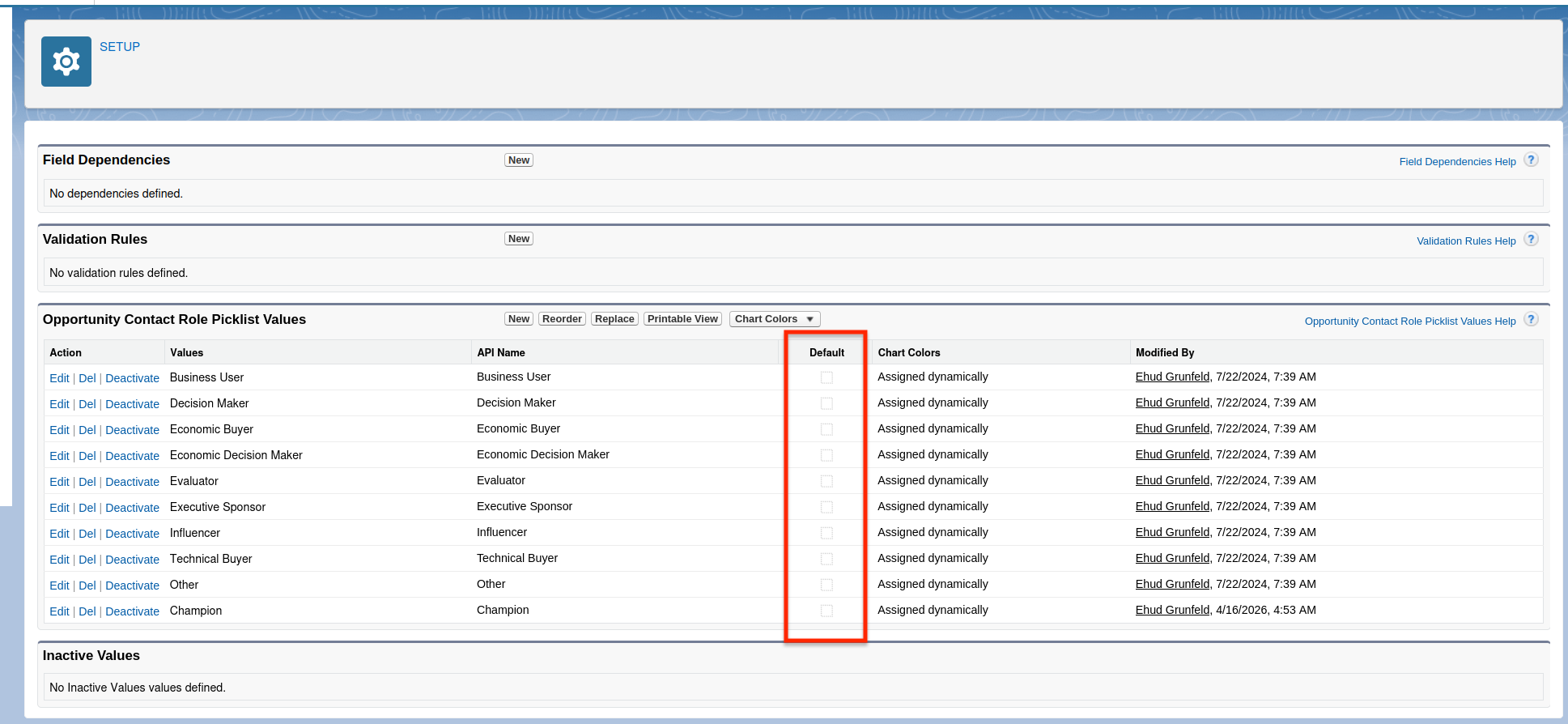
Before Spotlight.ai can reliably sync contact roles, your Salesforce admin must ensure that no Opportunity Contact Role picklist value is set as the default - especially Champion or Economic Buyer.
To fix this, go to Setup - Object Manager - Opportunity Contact Role - Fields & Relationships - Role, review the picklist values, and uncheck any value marked as Default.
Frequently Asked Questions
Does this ONLY apply to Champion and Economic Buyer contacts?
❌ No. Spotlight.ai syncs all contacts it discovers from meetings and emails. Champion and EB are highlighted because their specific role designations are also written to Salesforce OCR.
Does this work for AI-detected Champions and Economic Buyers?
✅ Yes. Both manual and AI-detected assignments trigger the sync.
Will changes made in Salesforce OCR update Spotlight.ai?
✅ Yes. When the parent Opportunity is edited or opened in Salesforce.
Can I enable this for specific users only?
❌ No. This is an organization-level setting only.