
Setting Up Spotlight.ai for Zoom Meetings
Overview
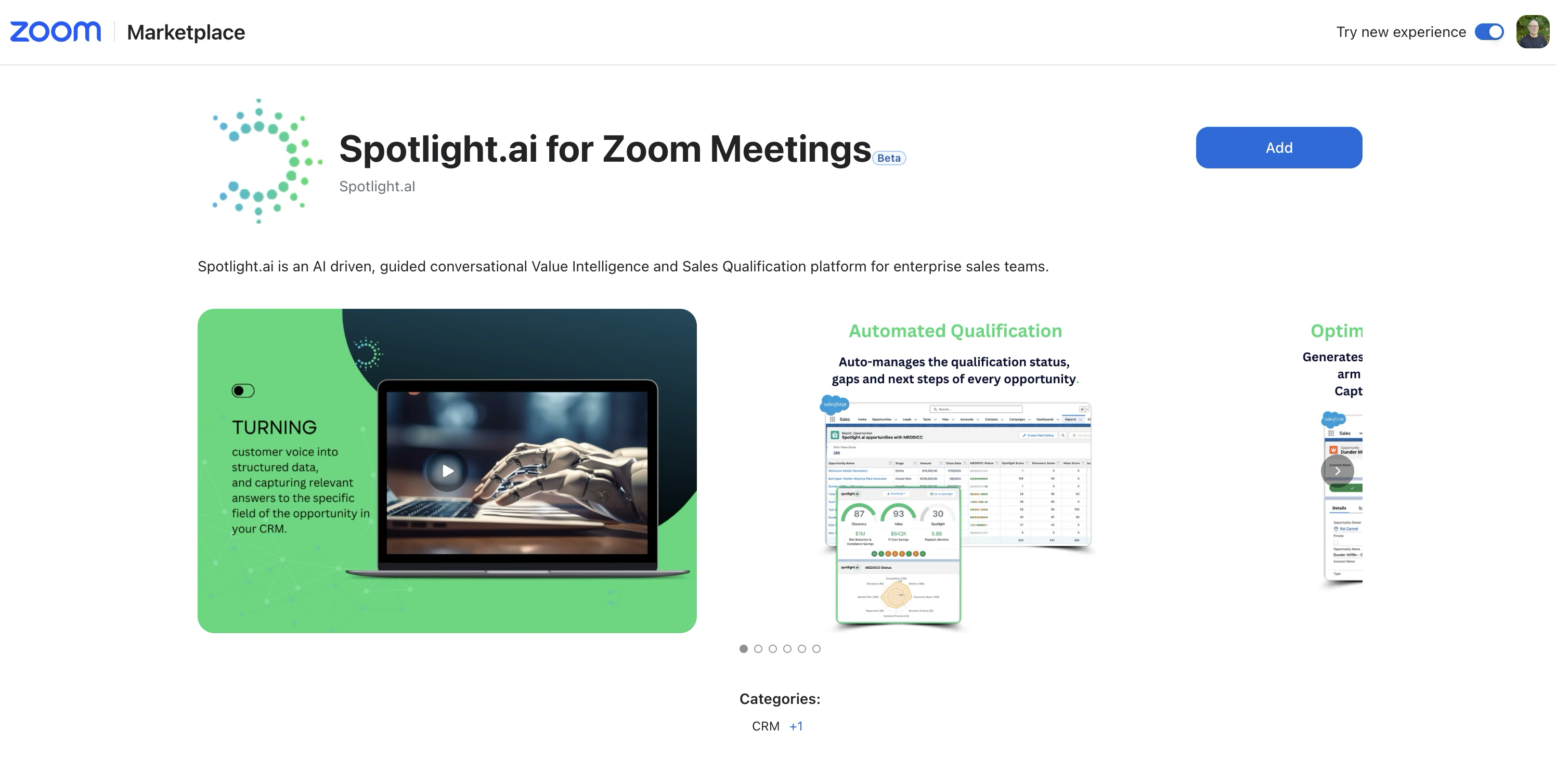
Spotlight.ai integrates with Zoom through a dedicated app in the Zoom Marketplace: Spotlight.ai for Zoom Meetings. Once installed, the Spotlight.ai Notetaker can automatically join your Zoom meetings, transcribe them, and extract deal insights.
The app can be installed by individual users or deployed by a Zoom admin to specific users or groups.
Installing as an Individual User
- Go to Spotlight.ai for Zoom Meetings on the Zoom marketplace
- Or go to the Zoom Marketplace and search for Spotlight.ai for Zoom Meetings.
- Click Add.
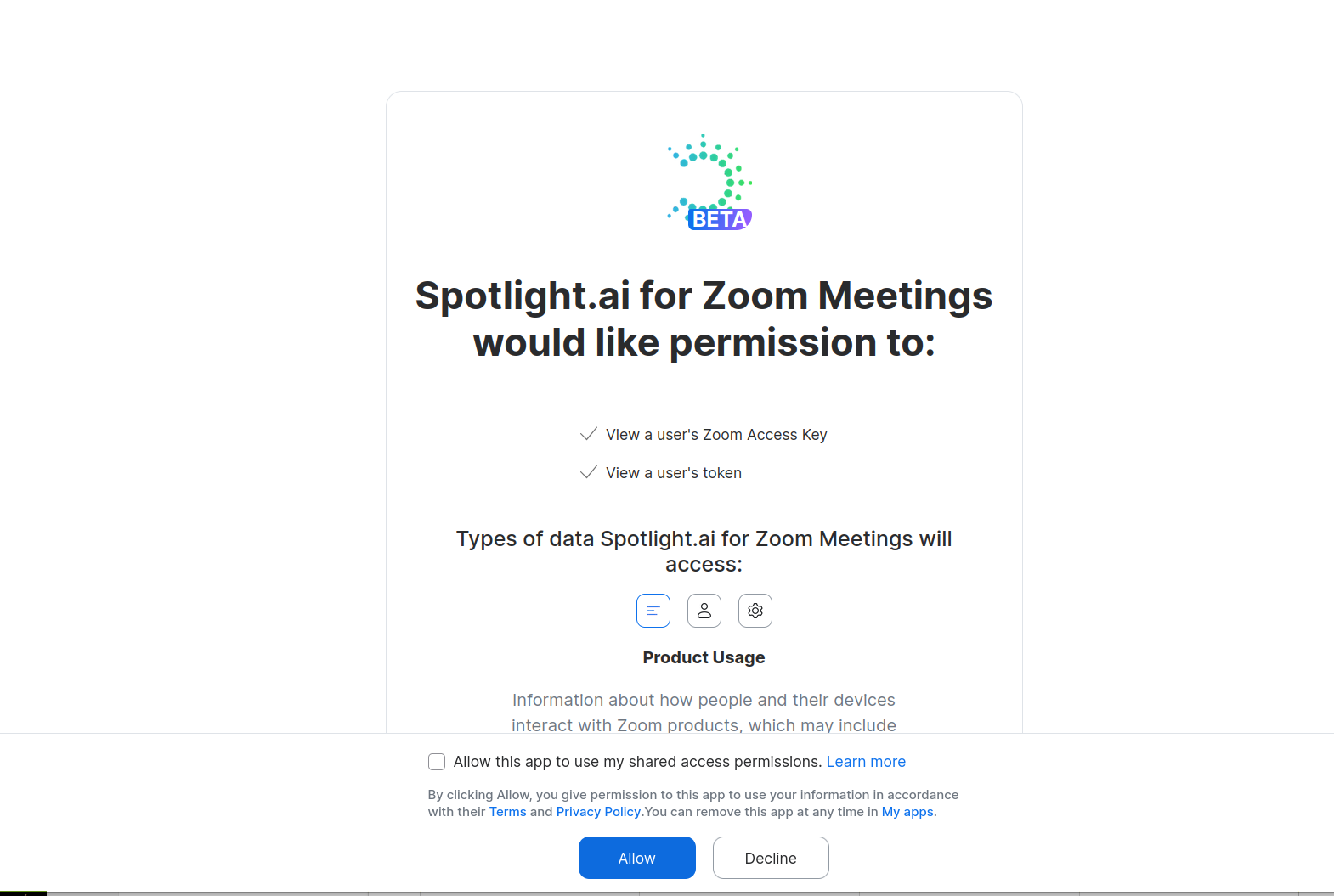
- Review the permissions the app requires:
- View a user's Zoom Access Key
- View a user's token
- Click Allow to authorize the app.
Admin Deployment
Zoom admins can deploy the app to all users or to specific users and groups, without requiring each person to install it individually.
- Go to the Zoom Marketplace and find Spotlight.ai for Zoom Meetings.
- Click Add for Others.
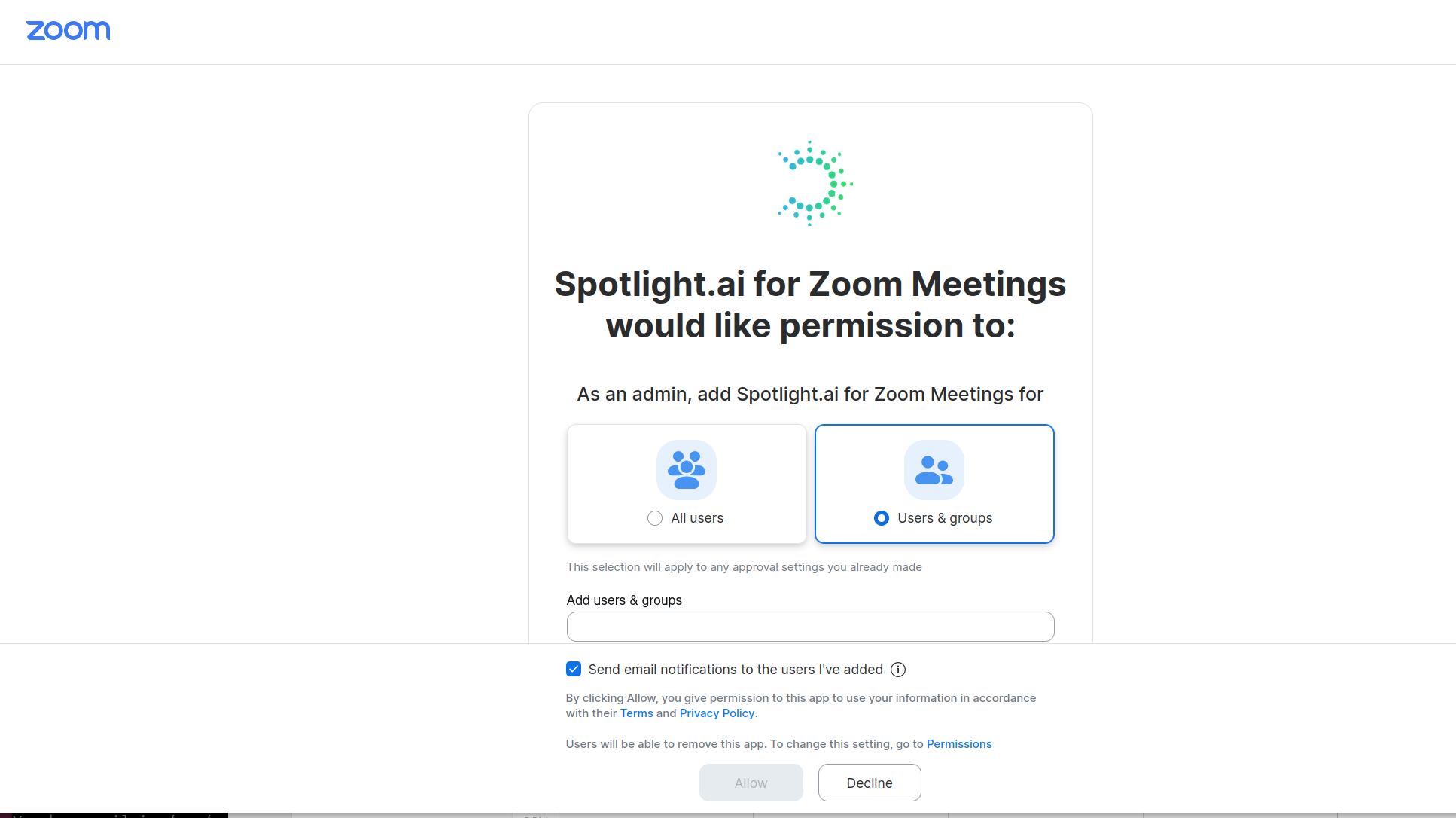
- Choose the deployment scope:
- All users - deploys to everyone in your Zoom account.
- Users & groups - deploys only to the users or groups you specify.
- If deploying to specific users or groups, add them in the Add users & groups field.
- Optionally, check Send email notifications to the users I've added to notify them.
- Click Allow.
Managing Users After Deployment
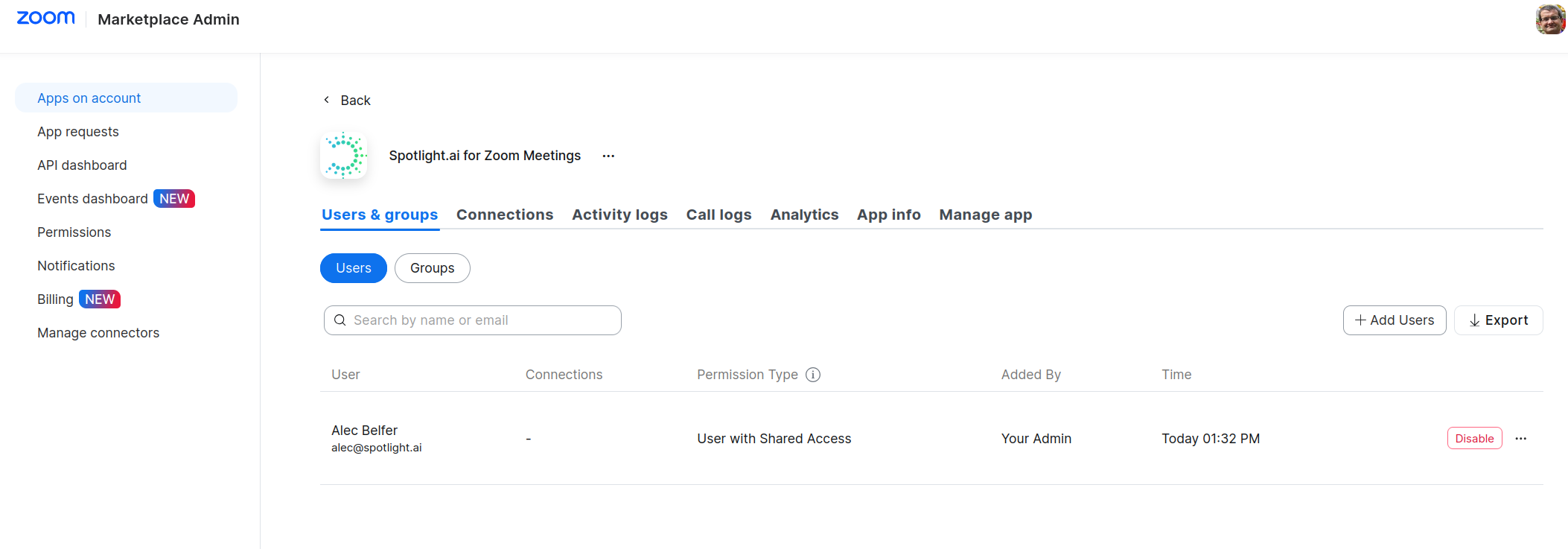
After deployment, admins can view and manage who has the app installed from the Zoom Marketplace Admin panel.
- Go to Zoom Marketplace Admin - Apps on account.
- Find Spotlight.ai for Zoom Meetings and click on it.
- Use the Users & groups tab to add or disable users.
Recommended Zoom Settings
To ensure the Spotlight.ai Notetaker can join your Zoom meetings without interruption, your Zoom admin should configure the following account-level settings.
Go to Zoom - Settings - Meetings - Security and make the following changes:
- Waiting Room - Turn this OFF. If the Waiting Room is enabled, the Notetaker may get stuck waiting and never join the meeting.
- Allow participants to join before host - Turn this ON. This ensures the Notetaker can enter the meeting room even if the host has not joined yet.
Frequently Asked Questions
Does every user need to install the app themselves?
❌ No. A Zoom admin can deploy the app to all users or specific groups from the Zoom Marketplace.
Will users be notified when the app is deployed to them?
✅ Yes, if the admin checks the Send email notifications option during deployment.
What permissions does the app require?
The app requests permission to view a user's Zoom Access Key and token. These are used to allow the Spotlight.ai Notetaker to join Zoom meetings on behalf of the user.
What happens if the Waiting Room is left on?
The Notetaker will be held in the Waiting Room and will not join the meeting automatically. Turn Waiting Room off to avoid this.