Associations between Meetings and Opportunities
Last updated: August 25, 2026
Each meeting transcript, whether from the Spotlight.ai Notetaker, Gong, Chorus.ai, or SalesLoft, can be associated with an opportunity. Meetings can be associated automatically or manually. Whenever the meeting title references a specific opportunity or the discussion clearly concerns a particular opportunity, it is associated automatically. If there is any ambiguity, Spotlight.ai leaves the association to the meeting owner. Additionally, features are available to dissociate meetings from opportunities in case of machine or human error.
Associating meetings with opportunities enables qualification and value discovery questions to be answered if they are discussed during the meeting. Although actual meetings may cover multiple opportunities, the system limits linking to a single opportunity because large language models (LLMs) cannot determine which opportunity a specific answer pertains to. If meetings were associated with multiple opportunities, each opportunity would receive the same answers, leading to inaccurate data.
Breaking the association between a Meeting and Opportunity
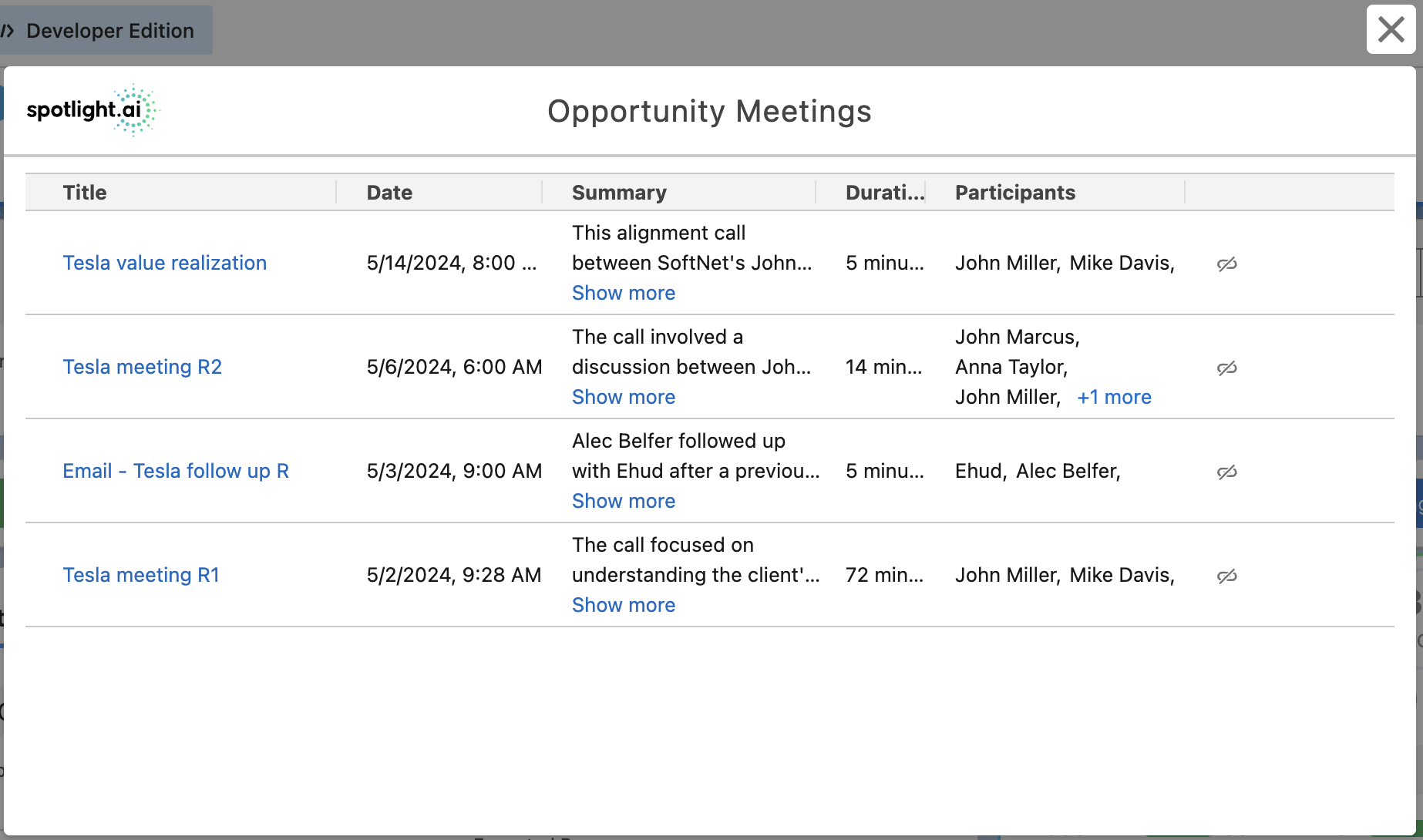
Click the Interactions button in the Scorecard component in your CRM. A list of interactions (including meetings) will appear.
For the row representing the meeting that should not be associated with the opportunity, click the small link icon with the slash through it on the right side. This will undo any answers that were populated by that meeting transcript.
Creating an association between a Meeting and Opportunity
If you looked at the associated meetings by clicking the Interactions button in the Scorecard component in your CRM and you did not see a meeting that should be there, then you need to create an association between that meeting and opportunity.
If you use Salesforce, go to the Spotlight.ai Interactions tab (that tab must have been added to your Salesforce UI first). If you are in Spotlight.ai's web application, click Interactions on the left. Note: this user interface also allows you to unassociated opportunities from meetings by clicking the small "x" to the right of the opportunity name.
In the search field, type part of the name of the meeting event from your calendar. Provide just enough of the name of the meeting to uniquely identify it.
In the row representing the meeting, you will see an input with the placeholder Search opportunities... Click in this field.
Type part of the opportunity name and selected it from the results.
Once you select an opportunity, it will take up to 2 minutes to process the transcript and answer questions.