
Setting up the Microsoft Teams Connector
BETA
Spotlight.ai can automatically pull transcripts from your Microsoft Teams meetings for licensed users. It analyzes those transcripts to identify answers to the MEDDICC qualification questions from your sales playbook, assess participant sentiment, take meeting notes, and generate follow-up emails.
To know when your meetings take place, Spotlight.ai also includes an Outlook Calendar Connector. This lets Spotlight.ai see your meeting titles, determine whether a meeting is internal or external based on who's invited, and match attendees' names to their email addresses.
This article walks you through the full setup, which has two parts:
- Grant admin consent — done once by an IT Administrator, so users don't each have to be approved individually
- Connect your Microsoft account — done by each individual user
What Spotlight.ai Can Access
Spotlight.ai connects to Microsoft on behalf of each individual user who signs in — it only ever sees data that user has access to. It does not have standing access to everyone in your organization; only users who individually choose to connect their account are accessible.
Part 1 — Grant Admin Consent
Who does this: An IT Tenant Administrator at your organization.
How often: Once per organization.
- Navigate to https://app.spotlight.ai and use Sign in with Microsoft to login.
- Navigate to the link for the appropriate Spotlight.ai tenant environment
- Stage/Sandbox: Get from Spotlight.ai Support
- Production: https://login.microsoftonline.com/common/adminconsent?client_id=7101001e-3489-47f4-a2bf-71f073cfb644&redirect_uri=https://app.spotlight.ai/oauth2/login/code/microsoft-transcripts
- Follow the Microsoft article Configure application access to online meetings or virtual events to ensure our app has access read meeting transcripts (OnlineMeetingTranscript.Read.All). Our app ID is in the URL in step 2 above.
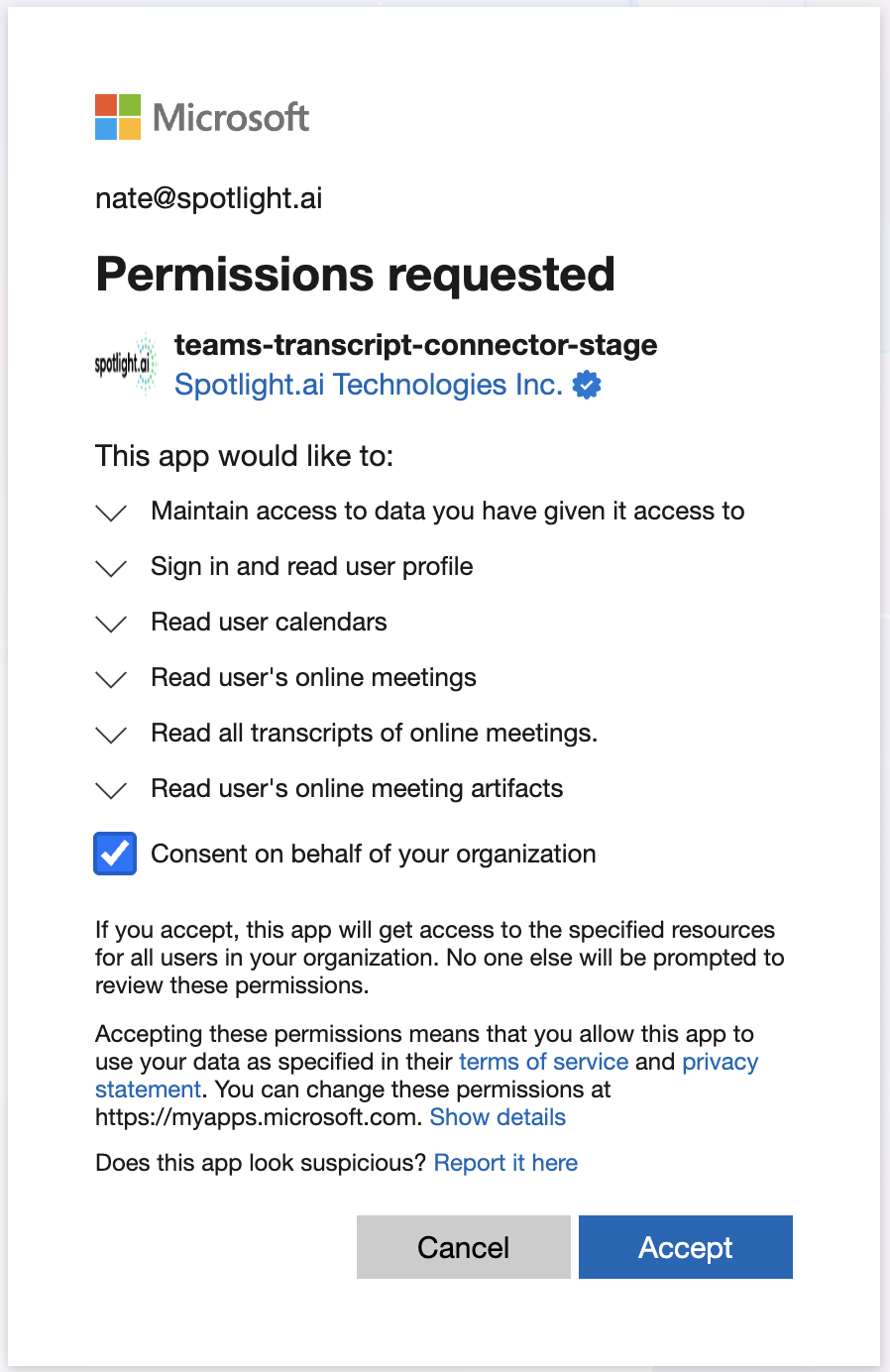
- Check Consent on behalf of your organization. This means you are consenting to make the application available to users in your organization. They still have to connect their individual accounts in the steps below.
Part 2 — Connect Your Microsoft Account
Who does this: Each individual user.
Authorizing the application for an individual user
-
End-users navigate to the link for the appropriate Spotlight.ai tenant environment:
-
Stage: https://stage.spotlight.ai/oauth2/authorization/microsoft-transcripts
-
Production: https://app.spotlight.ai/oauth2/authorization/microsoft-transcripts
-
This will trigger a Sign in Microsoft
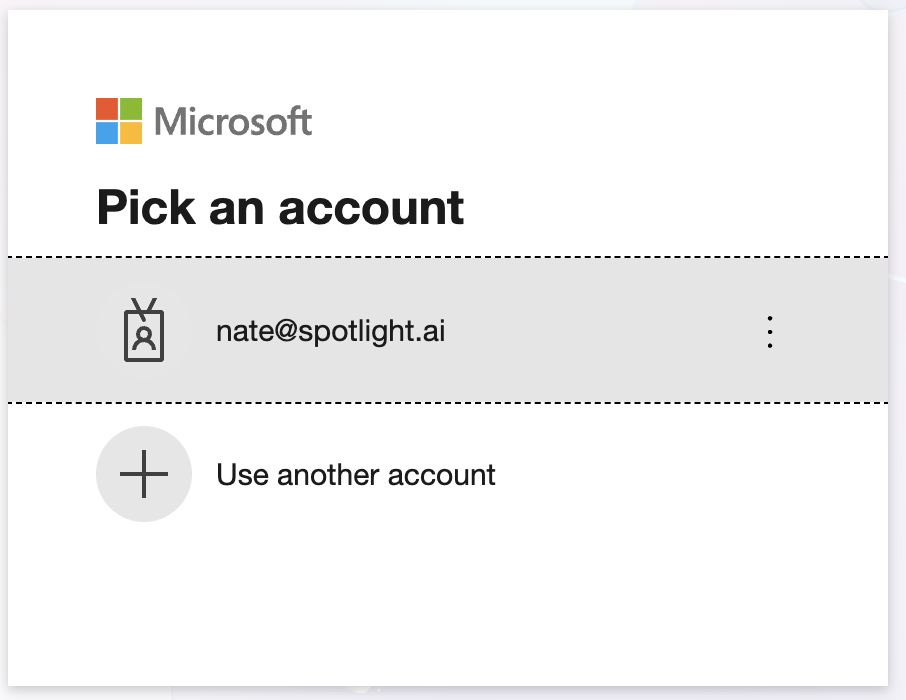
- The user needs authenticate (whatever options are presented as required by your organization) and then they will be presented with the list of permissions to their account that is being requested.
- Click Accept and the user will be signed in to Spotlight.ai and their account will be linked.
Do I have to do this every time? No. Once connected, you stay connected — Spotlight.ai refreshes your access automatically in the background. You'll only need to reconnect after an extended period of inactivity (typically around 90 days).
Troubleshooting
"I see a message that an administrator needs to approve this app."
Your organization hasn't completed Parts 1 and 2 yet. Contact your IT Administrator and ask them to register the connector and grant admin consent.
"I connected, but I don't see my meeting transcripts."
Transcripts are only available for Teams meetings where transcription was turned on. Make sure transcription was enabled for the meeting in question. If it was and you still don't see it, contact Spotlight.ai Support.
"I need to disconnect or revoke access."
Individual users can request disconnection by opening a ticket with Spotlight.ai Support. Administrators can revoke access for the entire organization from Entra ID → Enterprise Applications.
If you run into any issues during setup, please contact Spotlight.ai Support.